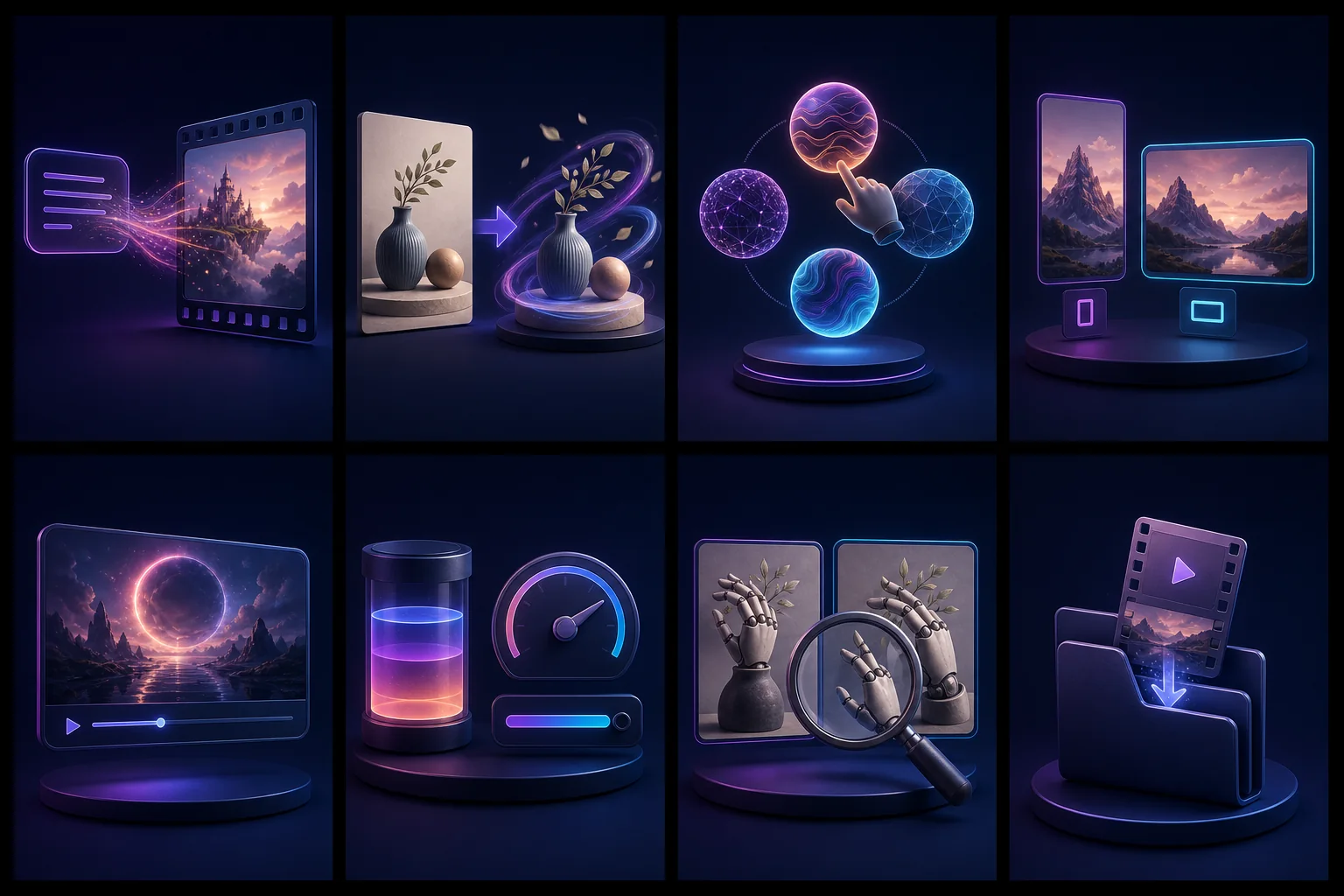
MindVideo AI is a web AI video generator that puts many video models in one studio, so you can start with text or a photo, pick a model, and make a short clip in one place. For social creators, small shops testing ad ideas, artists who want to animate still images, and anyone trying to compare AI video models quickly, that wide model choice is the main draw.
This page looks at what MindVideo AI is, how to create videos with it, which prompt habits help, how its models compare, what editing it can handle, how pricing works, what real users report, how privacy is treated, and where it fits in practical creative or marketing work. The appeal is simple: instead of bouncing between separate tools, you can test different AI video outputs faster in one workflow—but the credit math and mixed user reports still need a close look.
My quick take
I checked the current MindVideo AI site, its terms, and recent user reports. I did not claim a paid render test because that would need account access and credits. Based on what I could verify, MindVideo AI is a model hub. It is not one model with one clear look.
That can save time. You can try text to video, image to video, and other creative tools in one place. It can also make the price hard to judge. One model may cost more credits than another. A failed or weak clip can change the true cost fast.
Verdict: MindVideo AI is worth a small free test if you want to compare models in one place. Do not buy a large plan until you know the model, clip length, and credit cost that fit your work.
What is MindVideo AI?
MindVideo AI is a web AI video generator for video, image, and audio work. Its site says users can create, edit, and download media in one flow. The main video paths start from text or a still image.
The company’s official site shows a broad creative studio. That is the main draw. You do not need to visit a new site for each model. You pick a path and work from one screen.
This setup is much like a food hall. Many kitchens sit under one roof. The hall is easy to use, but the meal still depends on the kitchen you pick.
Why people may like this video generator
Text-to-video and image-to-video support faster video creation in one AI video generator
Several models can give you different looks
Short clips can be made without a full edit app
Common screen shapes help with social posts
A photo can become a moving product or story shot
The AI video generator may help a small shop test ad ideas. It may help an artist move a still scene. It may also help a social team make quick social media content.
It is less fit for a long film. Short AI clips still need to be joined, cut, mixed, and checked in a video editor.
How to create videos
Open MindVideo AI.
Create an account if the AI video generator asks for one.
Pick text to video or image to video.
Choose a model.
Pick the screen shape and clip length.
Write one clear prompt and simply describe the scene, motion, or mood you want.
Check the credit cost.
Generate a preview.
Save the result only after a close review.
Start with the shortest low-cost test. Do not use a long prompt first. A small test lets you learn how the model reads motion words.
Text-to-video prompt tips
Name the subject, action, place, light, and camera move in your text descriptions so the generated scene stays focused. Keep one main event.
Example: “A blue toy boat moves across a calm pond at dawn. Slow side view. Soft fog. The AI text does not ask for camera shake.”
This is easier to judge than: “Make a wild film with many boats, a storm, people, birds, and a fast camera.” Too many events can lead to bent shapes and sudden cuts.
Create video from one photo
Image to video can be more steady because you can work from static images and keep the first frame fixed. Simply upload a clean photo. Then ask for a small move.
For a face, try a blink or a small smile. For a product, try a slow push in. For a view, try light wind in the trees. Big turns and fast hand moves are harder.
Check uploaded photos first. If they have odd fingers, broken words, or a soft logo, motion may make those flaws worse.
Models, speed, and output quality
A model hub can change its model list, so getting professional results depends on testing output quality the same way each time. New names may appear. Old choices may move or leave. That means a review can age fast.
Judge each model with the same prompt. Keep the screen shape and clip length the same. Then score:
Did the subject keep its shape?
Did the camera move as asked?
Did new objects pop into the shot?
Did the face or text change?
Would you keep the clip?
The best model is not always the one with the sharpest frame. A clean motion path can matter more than small detail.
Editing features
MindVideo AI presents itself as more than a single Generate button for video editing. Still, a web studio is not a full pro editor. Check whether your current plan lets you trim, add text, change sound, or join clips.
I would finish a set of clips in an editor I know. That gives better control over cuts, sound levels, captions, and brand text.
Preview and download checks
Before you download videos, play the clip at normal speed and half speed. Watch hands, eyes, edges, signs, and any item that crosses the frame.
Then check:
File type
Output size
Watermark
Frame shape
Sound track
Right to use the clip for paid work
Pricing and credits
Credit tools need a cost-per-keeper test. A plan may show many credits, but that number does not tell you how many good clips you will get.
Use this simple math:
Make five clips with one model.
Add all credits spent.
Count clips you would use.
Divide total credits by usable clips.
If five jobs cost 100 credits and only two are useful, each keeper cost 50 credits. That is the number to compare with other tools.
Prices and free gifts can change. Check the plan screen in your own account before a buy. Do not trust an old blog price.
What real users report
User reports are mixed. Some people like the easy model access. Others report that a free path stopped working or that they wanted a better free choice. A Reddit thread about MindVideo AI includes both a warning and a report that service access changed.
That thread is not a lab test. It is one clue. It tells me to run a small job before I pay and to avoid keeping my only copy inside the service.
Review sites can add more clues, but read the low and high notes. Check dates. A G2 review page lists user views and product details. Some reviews may come from people with very different needs.
Privacy and rights
Do not upload a client secret, uploaded photos with a private face, or a child’s photo without clear consent. Read the current terms before paid work. MindVideo AI’s terms say the site and service content are owned by the company or its licensors. Your upload and output rights need their own close check.
Save local copies. Delete uploaded photos when you no longer need them. Use a made-up test image before private media. AI processing may rely on large models, so review storage and privacy terms closely.
Who is MindVideo AI for?
It may fit:
new users who want quick short-form output
Small shops testing ad ideas
Artists who want to move still images
People who want to compare models fast
It may not fit:
Long films with the same actor in many shots
Work with a fixed due date and no backup
Private client footage with strict storage rules
Teams that need deep frame-level edits
If you want faster content creation with less manual editing, this may fit your needs.
My test plan for any AI video generator
I use five small prompts: a face, a hand action, a product, a wide view, and text in a scene. I keep the length and screen shape fixed. This shows where a model bends.
I also track wait time, failed jobs, credits, and keepers. A fast AI video generator that needs six tries may be slower than a careful AI video generator that works on try two.
Common questions
Is MindVideo AI free?
It may offer free users a limited test or credit gift. The amount can change. Check the live account screen.
Can it animate one photo?
Yes, image-to-video is one of the main paths shown by the service, including turning a single photo into motion.
How long does a video take?
Time depends on the model, clip length, server queue, and plan. Run one short test before a deadline.
Can I use the output for paid work?
Check the live terms and your plan. Commercial use and model and source-media rules may differ.
How to compare the models inside MindVideo AI
Use a small test sheet. Put the model name in the first column. Add clip length, screen shape, credits, wait time, and result in the next columns. Give each result a score from one to five for motion, shape, and prompt match.
Run the same simple prompt in each model. Do not change the words after one bad result. A fair test holds the prompt steady. If a model fails twice, note the failure and move on.
Then run one image-to-video test. Some models are far better with a fixed first frame. This two-part test can show whether a model fits open idea work or product demos.
Ways to spend fewer credits
Use the shortest clip while you learn a model
Fix the source image before upload
Ask for one action, not a full story
Use a low-cost preview size when it is offered
Save strong prompt words in a note
Stop after two failed tries with the same setup
More tries do not always lead to a better video. A weak source or a bad model match can eat the whole credit pack. Change one part at a time so you know what helped.
MindVideo AI for three real jobs
A shop product clip
Use photos on a plain background. Ask for a slow camera push and soft light. Keep the item still. Add price and brand text later in an editor so the model cannot bend the words, and you can still get professional-quality videos for a product clip without relying on a full production team.
A social story scene
Use text to video to make cinematic videos for a wide scene where small flaws are less clear. Make three short clips for short-form use, including YouTube Shorts, then pick one. Add captions for the key idea.
A class explainer
Make simple visual clips, not facts written inside the scene. Record a clear voice after the video is done. This makes fact checks and later fixes much easier.
AI video generator and image to video checklist
This AI video generator is easiest to judge with a fixed check, so use the same checklist for every video generator, every AI video model, and every video tool.
Image to video: check the source image before the AI video job.
Image to video: keep one main subject in the AI video frame.
Image to video: ask the AI video model for one small move.
Image to video: keep the AI video camera still when a face fills the frame.
Image to video: check that the AI video keeps the same clothes and colors.
Image to video: add brand text after the AI video generation step.
Image to video: track AI video credits before you click Generate.
Image to video: save each useful AI video to your own drive.
Image to video: delete uploads from the video generator when the job is done.
A good video generator should make this flow clear. The AI tool should make preview, download, and removal simple from your account.
How to generate videos with this AI video generator
Start with one text prompt or one AI image. Pick from the AI models, set the screen shape, and upload only media you have the right to use. The video generation step should make short videos that are easy to check. Watch the AI generated video for scene consistency, facial expressions, and clean motion.
Then use video editing to add audio, fix the quality, and shape the video for social media. Static images may work better than a long text description when you want steady product demos. New users should create videos in short tests. Save the high quality videos, then delete uploaded photos you no longer need.
A good AI tool makes content creation clear. It lets users generate videos, compare AI models, download videos, and reach a support team when video generation fails. This is more useful than a free AI video generator that hides limits or makes weak professional videos.
Quick test recap
Use one idea. Keep the clip short. Pick one model. Save the prompt. Use one source image. Ask for one move. Check the cost. Watch the full clip. Check the face. Check the hands. Check the sound. Add text later. Save a local copy. Track each good result. Stop after two bad tries. Read the live terms. Delete old uploads. Keep client work safe. Then choose with care.
Final verdict
MindVideo AI is handy if you want many creative paths under one roof. The tradeoff is less simple price math and a service that can change as model access shifts.
I would try one short text clip and one image clip. Start creating, then track every credit. If at least one result is useful and the rights fit your work, then a small plan may make sense. If not, leave before sunk cost turns a test into a habit.